ZEEK CYBER PRINTCIRCUIT SKULL.
CIRCUIT SKULL.
FULL PERSONALITY.
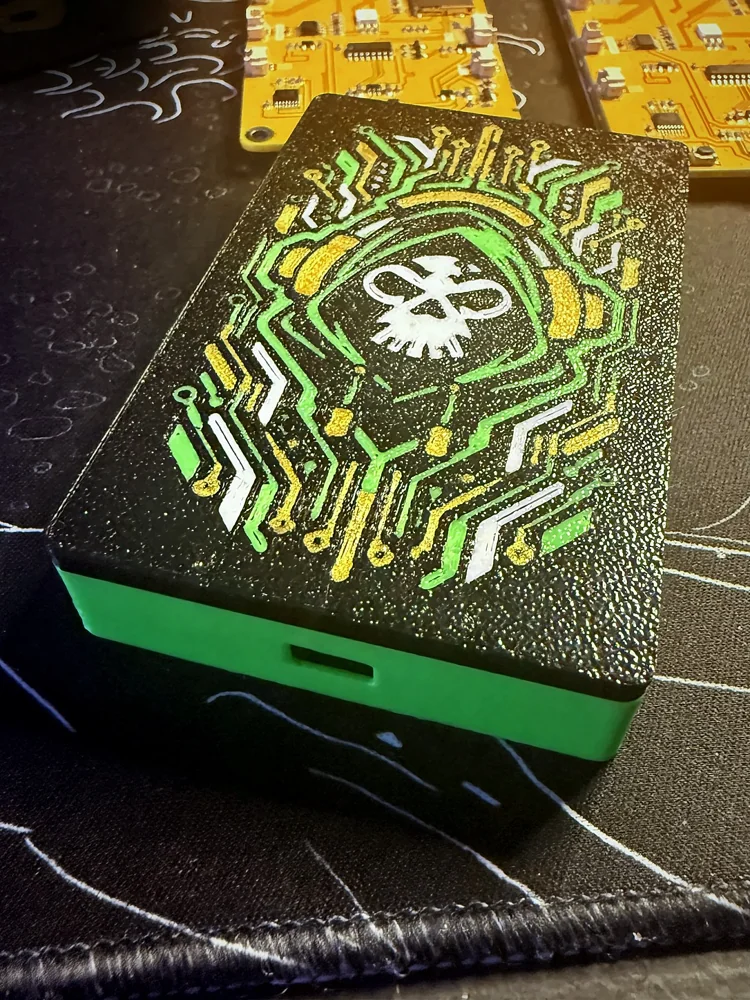
Multi-color PETG. Hooded-skull circuit art. A limited edition print that helps fund YellowB0i.
3.2″ $24.99 · 3.5″ $29.99
Shop Zeek LE cases ↗ YOUR POCKET. YOUR RULES.
Music composed by DJ Anubis
Press Play for some background music.
THE YELLOWB0I WORKSHOP / 001
Your games. Your movies. Your little yellow machine.
Everything you need to get it up and running, right here.

LIMITED EDITION / PRINTED BY ZEEK
Already flashing a YellowB0i?
Give it a case with some character.
Multi-color PETG. Hooded-skull circuit art. A limited edition print that helps fund YellowB0i.
3.2″ $24.99 · 3.5″ $29.99
Shop Zeek LE cases ↗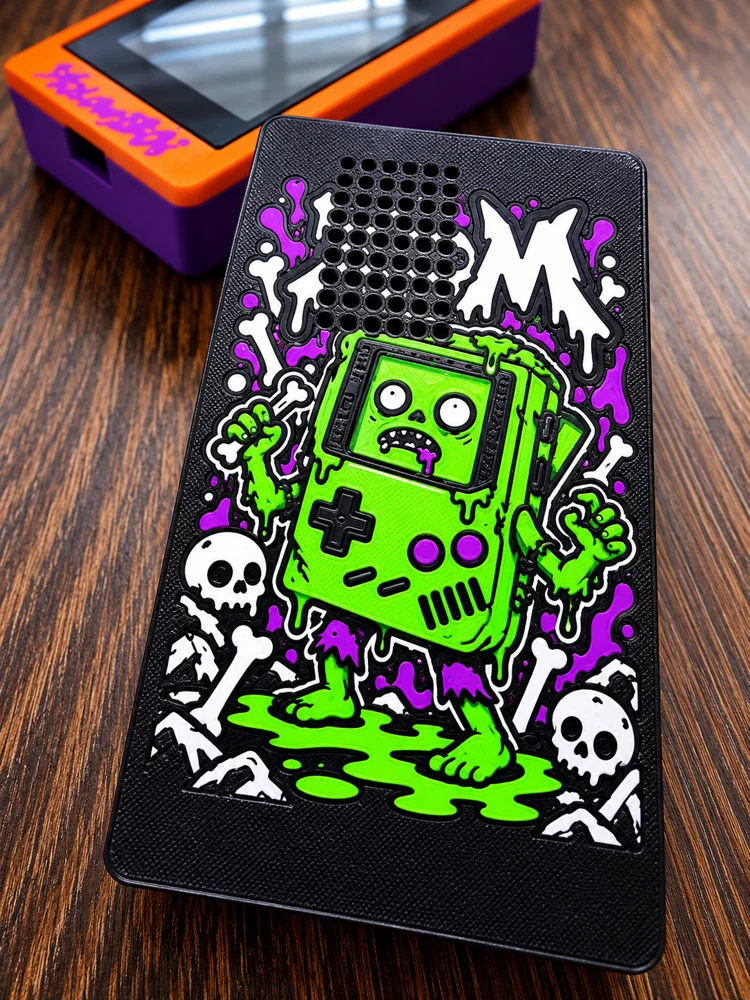
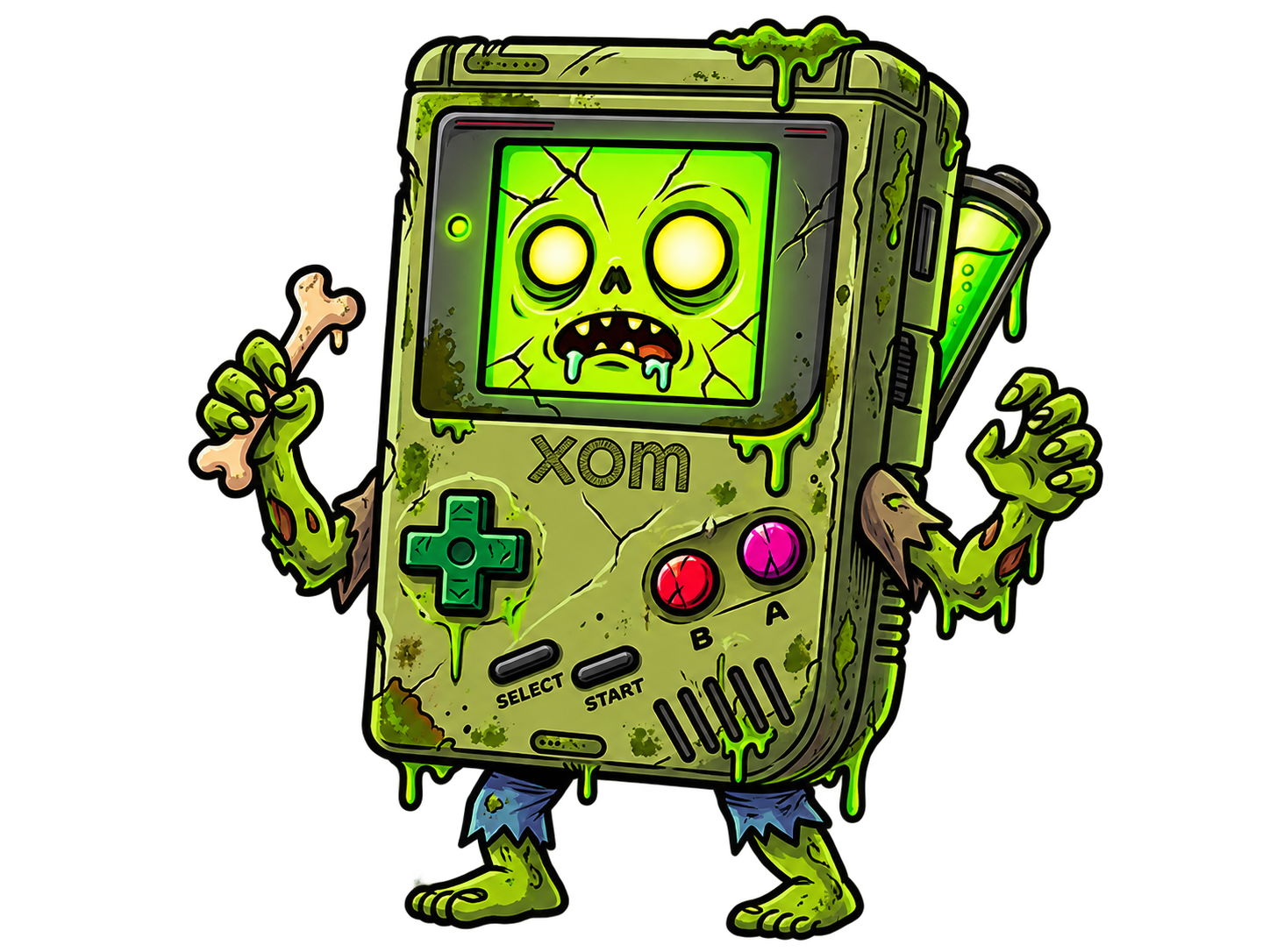
Meet XOM’s Cemetery Collection L.E. Drop. Zombie-console style for your next YellowB0i build.
3.2″ $24.99 · 3.5″ $29.99
Shop XOM LE cases ↗Case-only prices. Choose your exact board and screen size in the shop. Electronics and shipping additional.
01 / THE STARTING LINE
One cable. The right board.
A fresh start for your YellowB0i.
Use a USB data cable. Close any serial monitor first. Keep the device plugged in until installation finishes.
Use desktop Chrome or Edge with this page opened over HTTPS. Try another data cable or USB port. Close Arduino IDE, PlatformIO monitors, or other flashers. If it stays on “Connecting,” hold BOOT while connecting, then release when writing starts.
If there is no serial port, your board may need its USB-to-serial driver. Check the USB chip model on the board before installing a driver.
BUILD ALONG WITH ZEEK
Watch the 3.5″ Freenove ESP32-S3 capacitive-touch build: assembly, internal wiring, and fitting the hardware into its printed case.
Use the firmware and wiring for your exact board when following along.
Watch the build guide02 / YOUR POCKET CINEMA
Turn a video into files
your YellowB0i can actually play.
03 / BRING YOUR OWN ADVENTURE
A few folders. Your own games.
That’s the setup.
Use a FAT32 microSD card. Download the SD starter, unzip it, and copy its contents to the card’s root—not inside another folder.
Download SD starter ↓Artwork and folder structure only. No ROMs or movies included.Put Game Boy .gb files in /roms/gb/ and Game Boy Color .gbc files in /roms/gbc/. Extract ZIP archives first.
Use your own lawfully obtained games. Give each game a unique filename so saves don’t share a name.
Insert the card, start YellowB0i, and choose a game. Use the game’s own Save option, then wait at least six seconds before switching off.
Cartridge save data goes into /saves/. This keeps supported in-game progress; it isn’t an instant save state.
THE CARD, AT A GLANCE
Keep the SD card organized.
YellowB0i takes it from there.
SD CARD /
├── roms/
│   ├── gb/         Game Boy .gb files
│   └── gbc/        Game Boy Color .gbc files
├── saves/          Your game’s .sav + .sav.bak
├── movies/
│   ├── MyMovie.raw
│   ├── MyMovie.pcm
│   └── MySeries/
│       ├── Episode 01.raw
│       └── Episode 01.pcm
└── ui/ Menu artwork from the starterNot every game supports cartridge saves. Saving cartridge RAM doesn’t create a resume-anywhere snapshot. Use the game’s actual save system first. YellowB0i’s manual Save menu or quitting the ROM can also flush that data. If “SAVE FAILED” appears, check that the card is writable and has free space; use the serial log to look for [SAVE] and [SD] messages. Keep .sav.bak files as recovery copies. Continuous RAM writes or SD errors may delay autosave—six seconds is a waiting recommendation, not a guarantee.
04 / THE GOOD STUFF
MakerWorld cases. Parts lists.
Everything in the right place.
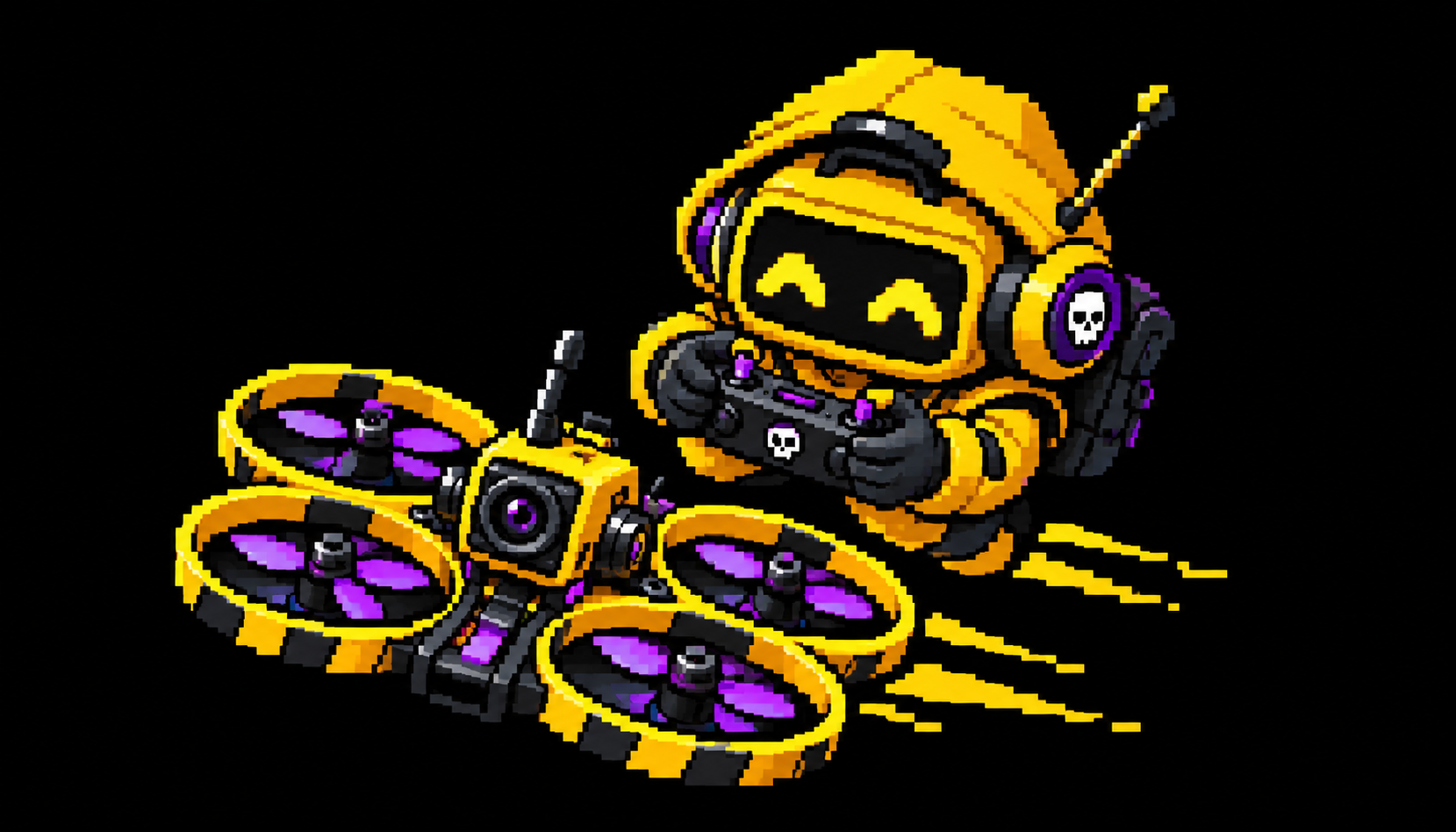 Need it printed?Click the drone to purchase your case.Shop printed cases ↗
Audio hardware for both 2.8″ and 3.2″ builds: an 8 Ω, 1 W speaker with a two-pin connector. Match the connector to your board’s speaker socket.
Use a desktop computer with Chrome or Edge and a USB data cable. This installer needs Web Serial and a secure HTTPS connection.
Case files will be linked on MakerWorld rather than downloaded here. For case designs with logos and custom artwork, visit ZeekSecLabs.com ↗.
The public repository is being prepared. This page will link to it when its URL is confirmed.
THE PEOPLE BEHIND THE PIXELS
Built on the work of the original open-source authors. See the full credits →